Cheap digital signage usually comes with a catch.
The hardware is cheap, but the software is monthly. The software is cheap, but the setup needs a laptop. The player is cheap, but it expects you to maintain a custom kiosk browser. The "free" option works until someone needs the screen to recover after a restart.
There is one setup we would actually consider for a low-cost permanent screen:
An existing TV, the onn 4K Google TV streaming device from Walmart, and Screen Keep's one-time on-device option.
As of June 26, 2026, Walmart lists the onn 4K Streaming Device with Google TV at $24.88. Screen Keep's one-time on-device option is $39.95 when local device management is enough.
That puts the simple setup at:
| Item | Planning cost |
|---|---|
| onn 4K Google TV device | $24.88 |
| Screen Keep one-time on-device option | $39.95 |
| Total before tax | $64.83 |
That is the hook: a no-subscription webpage sign under $65 before tax when you already have the TV.
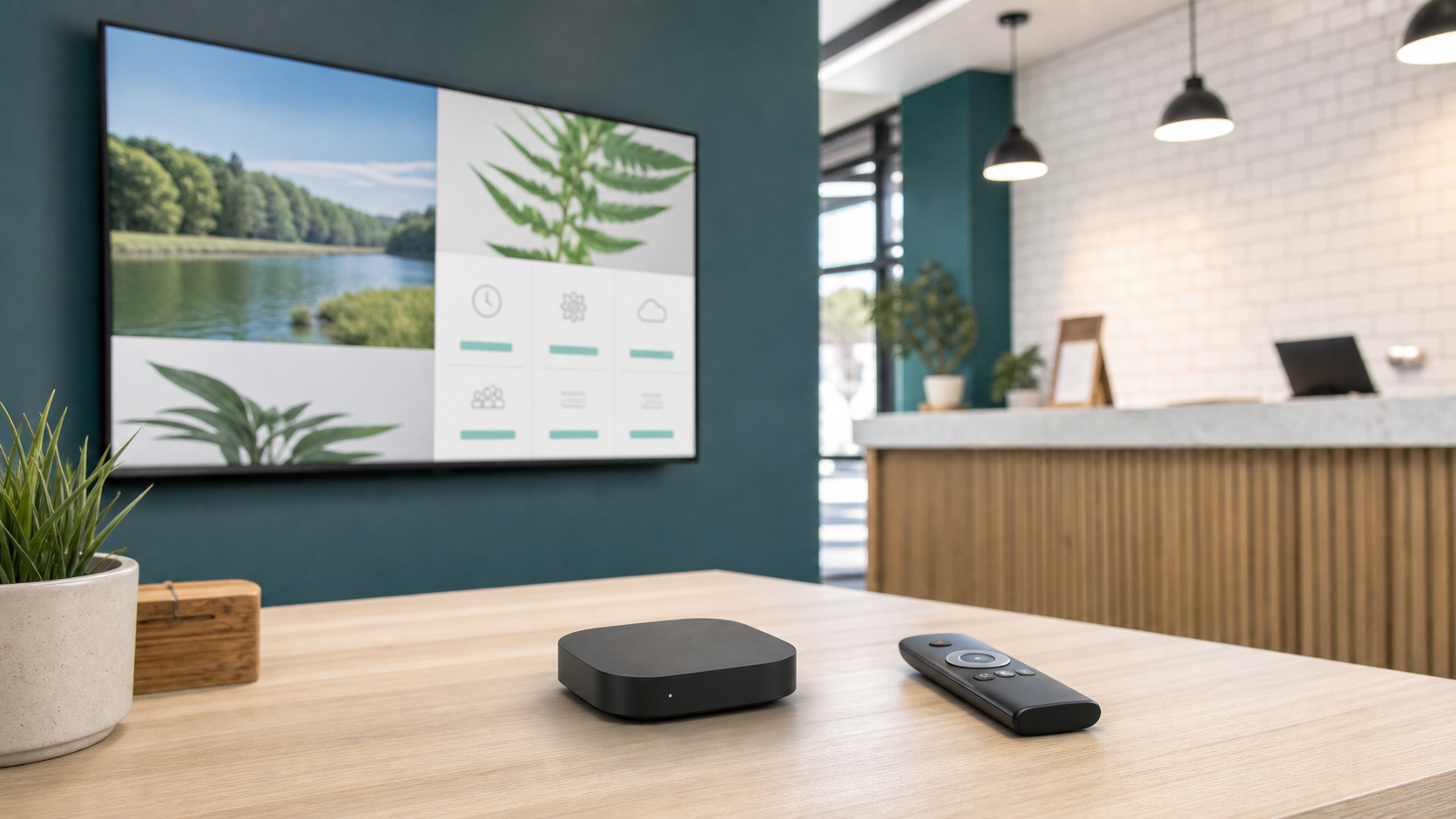
Prices and availability can change, so confirm the current retailer price before buying. The point is not that $64.83 will be true forever. The point is that low-cost Google TV hardware plus a focused display app can now make simple digital signage dramatically cheaper than many people expect.
What this setup is good for
This is not a full digital signage network in a box.
It is best for one focused screen that needs to show a webpage, menu, schedule, dashboard, announcement page, event page, or QR landing page.
Good fits include:
- a restaurant or cafe menu board,
- a lobby welcome screen,
- an office dashboard,
- a gym class schedule,
- a church announcement screen,
- a real estate office listing display,
- a small retail promo screen,
- a conference booth TV,
- or a waiting room page.
The ideal content source is already a URL. That might be a page you built, a menu page, a Google Slides publish link, a dashboard URL, a schedule page, or a simple landing page made with a website builder.
Screen Keep's job is to run that page on the TV device, keep it foregrounded, refresh it when needed, and give you a simpler setup path than casting a browser tab or maintaining a Raspberry Pi kiosk.
Why the onn 4K Google TV device is interesting
The onn 4K device is interesting because it lands in the exact price range that changes the conversation.
At around $25, it is inexpensive enough for a single menu board, booth display, or lobby screen experiment. It runs Google TV, which means it can install TV apps instead of depending on a phone, laptop, or cast session. It is small enough to hide behind a TV. It is also widely available through Walmart, which matters for buyers who want something easy to replace.
The Walmart listing currently describes the device as a 4K UHD Google TV streamer with 8GB storage and 2GB RAM. Those are not workstation specs, but they are enough for many simple webpage signage jobs.
The key phrase is simple webpage signage.
If the screen is showing a lightweight menu page, a clean dashboard, a schedule, or a static announcement page, you probably do not need premium hardware. If the screen is showing a heavy analytics app, a complex authenticated dashboard, or several high-motion embeds, a stronger device may be worth it.
Why this beats casting for permanent signage
Casting is easy for a meeting. It is weak for a sign.
A casted screen often depends on another device staying awake, staying connected, staying on the same network, and not being used for something else. That can be fine for a ten-minute presentation. It is not what you want for a screen that should run quietly all day.
The better model is TV-owned playback:
- The Google TV device runs the app.
- Screen Keep opens the URL.
- The TV keeps displaying the page.
- Staff are not asked to keep a browser tab alive.
That is the difference between "I can get this on the TV" and "this behaves like signage."
Why this can beat Raspberry Pi for simple signs
Raspberry Pi signage can be excellent when you need Linux control, sensors, local scripts, custom hardware, or a technical owner who enjoys maintaining the stack.
For a simple webpage sign, the Pi path can be more work than the screen needs.
A Pi kiosk setup may involve:
- imaging an SD card,
- configuring Chromium kiosk mode,
- handling OS updates,
- setting up auto-start scripts,
- protecting against browser prompts,
- supporting remote access,
- and documenting recovery steps for whoever owns the screen later.
That is not impossible. It is just not always cheaper once support time is real.
An affordable Google TV box plus Screen Keep is less flexible than a Pi, but that is part of the appeal. You are buying a simpler appliance-style workflow for a focused job.
For a deeper comparison, read the Raspberry Pi digital signage guide.
Where the under-$65 setup works best
This setup shines when the screen has a narrow purpose.
The page should be readable from a distance. It should not require constant keyboard input. It should not depend on hover menus, popups, cookie banners, or a login that expires every hour. It should be a screen-ready URL that can run unattended.
The best pattern looks like this:
- Build or choose the screen page.
- Install Screen Keep on the Google TV device.
- Register the display.
- Enter the URL.
- Adjust zoom if the page needs it.
- Leave the TV running.
If that sounds like the job, the budget setup is compelling.
If you need remote changes every week, multiple staff users, many displays, centralized online control, or client support, the $39.95 on-device option may not be the right long-term plan. Screen Keep's optional online management exists for those cases.
The cheapest setup is best when the management workflow stays simple.
When to spend more
The onn device is the budget pick, not the universal pick.
Spend more when the screen needs:
- built-in ethernet,
- stronger hardware headroom,
- a heavier dashboard,
- better long-term hardware consistency,
- a larger rollout across many locations,
- or lower support risk than the cheapest player can offer.
For those cases, the Google TV Streamer 4K is still a stronger default because it includes ethernet. The NVIDIA SHIELD is the premium performance option. A TV with Google TV built in can also be useful when you want fewer separate pieces.
The budget device is exciting because it makes the first screen cheap. It should not make you ignore network reliability, support ownership, or the cost of troubleshooting.
The no-subscription part matters
Many digital signage searches start with hardware, but the recurring software bill is often the bigger surprise.
If a screen only needs to show one webpage, paying monthly for a full content management system can be overkill. The setup may not need templates, playlists, media libraries, approval workflows, and user roles. It may only need reliable URL display.
That is where a one-time on-device option changes the math.
For one simple screen, the budget can stay close to the hardware and device software:
- existing TV: already owned,
- onn Google TV device: about $25 at the checked price,
- Screen Keep on-device option: $39.95 one-time,
- monthly subscription: $0 when local management is enough.
If the screen later needs remote management, you can choose that because the workflow needs it, not because the category forced it from day one.
For the broader buying decision, read the digital signage without subscription guide and the digital signage cost guide.
Setup checklist
Before you buy the cheapest player you can find, check the whole screen job.
Use this checklist:
- The TV has a free HDMI port.
- Wi-Fi is strong at the exact mounting location.
- The webpage is readable from the expected viewing distance.
- The page does not depend on hover-only controls.
- Login sessions, if any, can survive the real display schedule.
- Staff know whether the screen is managed on-device or online.
- The screen has a recovery plan if power or Wi-Fi drops.
If Wi-Fi is weak, do not ignore that just to save a few dollars. Either improve the network, use a supported ethernet adapter if practical, or choose a device with built-in ethernet.
Cheap hardware is only a win when it does not create support debt.
The best version of the hook
The strongest honest version is:
Lifetime webpage signage under $65 before tax, when you already own the TV and on-device management is enough.
That is a very specific claim. It avoids pretending every business screen can run on the cheapest box. It also makes the value obvious.
For a small business, school office, booth, church lobby, studio, clinic, or one-screen menu board, this can be the difference between "digital signage sounds expensive" and "we can try this today."
Start with the recommended devices guide if you are comparing hardware, or use the setup instructions when you are ready to put the first screen live.